Swig Order Guide 2026: How to Order Online, Delivery & Pickup

Ever wished you could skip the line and get your favorite Swig drink faster? Whether you’re heading to the drive-thru, ordering from home, or picking up on the go, Swig offers several convenient ways to place your order.
In this guide, you’ll learn how to order from Swig, including online ordering, the Swig app, drive-thru, pickup, and delivery options, so you can choose the method that works best for your schedule.
Visit For the Latest Swig menu with prices
Ways to Order from Swig
Here’s something worth knowing upfront. A Swig order doesn’t have to mean pulling into a drive-thru line at all. There are three real ways to get your drink:
Method | Best For | Skip the Line? |
In-store / Drive-thru | Spontaneous visits, no planning needed | No |
Swig App (Order Ahead) | Regulars who want speed and rewards | Yes, at most locations |
Delivery (DoorDash / Uber Eats) | Staying home, group orders | Completely |
How to Order Ahead with the Swig App
Swig’s mobile app makes ordering quick and convenient. With its mobile ordering feature, you can customize your drink, place your order in advance, and pick it up when it’s ready—helping you skip the wait.
Note: Using the app also lets you earn Swig Rewards points, save your favorite orders, and access exclusive app-only offers.
How to Order on the Swig Website
Placing a Swig order online through the website works similarly to the app, though the menu itself loads through Swig’s live ordering system once you get started. Here’s the walkthrough.
Step | What to Do |
1. Go to the Swig website | Visit swig.com |
2. Find your store | Use the “Find a Store” or “Locations” link to select your nearest Swig |
3. Open the menu | Click “Menu” to load the live ordering interface for that location |
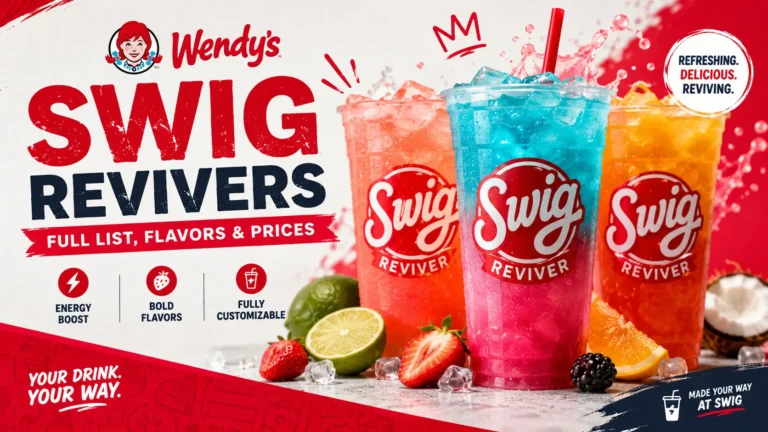
4. Browse categories | Explore Dirty Sodas, Refreshers, Revivers, Hot Chocolate, and Sweets & Treats |
5. Customize your drink | Choose your soda base, syrup flavors, fruit, and cream add-ins |
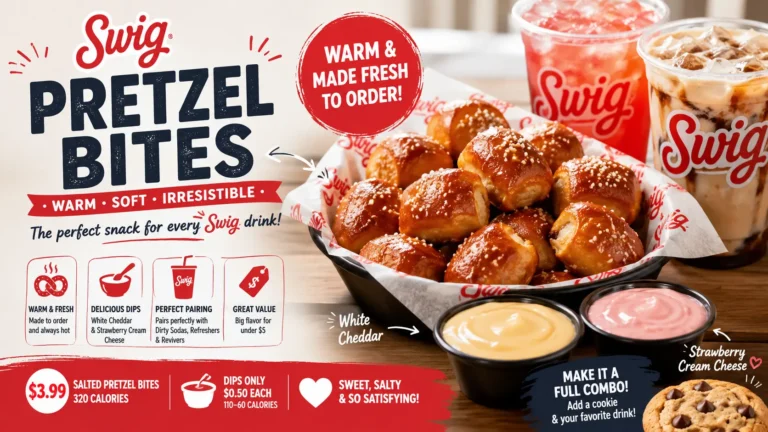
6. Add items to your cart | Repeat for any additional drinks, cookies, or pretzel bites |
7. Enter payment details | Add your card or saved payment method at checkout |
8. Confirm your order | Review your cart and place your order |
9. Pick up at your selected time | Head to the store’s designated pickup point for online orders |
Try also: Swig Secret Menu
How to Order Swig on DoorDash and Uber Eats
Ordering a Swig order online through delivery works almost identically on both platforms. Here’s a side-by-side breakdown.
Step | DoorDash | Uber Eats |
1. Open the app | Open the DoorDash app or website | Open the Uber Eats app or website |
2. Find Swig | Search “Swig,” or browse under Fast Food/American | Search “Swig,” or browse nearby restaurants |
3. Confirm location | Enter your delivery address to confirm your nearest store | Select your closest Swig location from search results |
4. Browse the menu | Browse by category: Sodas, Refreshers, Revivers, Hot Chocolate, Sweet Tea, Create Your Own, Sweets & Treats, Pretzel Bites | Browse the available menu and item categories |
5. Customize your drink | Adjust flavors, fruits, and creams listed under each item | Build your drink from the listed flavor and add-in options |
6. Add to cart | Add items, then proceed to checkout | Add items to cart, then proceed to checkout |
7. Confirm order | Confirm address, tip, and payment method | Confirm delivery address, tip, and payment |
8. Track delivery | Track your order in real time | Track your delivery through the app |
Swig Order Online Fees
Ordering through the Swig app or website for pickup usually costs the regular menu price. If you order through DoorDash or Uber Eats, you may pay extra delivery-related charges.
Order Method | Extra Fees |
Swig App (Order Ahead) | No extra fees. You pay the standard menu price for pickup. |
Swig Website | No extra fees. Same as in-store pricing for pickup. |
DoorDash Delivery | Delivery fee, service fee, and possible menu price markup |
Uber Eats Delivery | Delivery fee, service fee, and possible menu price markup |
Ordering Swig for Delivery
Don’t feel like leaving the house? You can order your favorite Swig drinks and treats for delivery in just a few minutes.
Swig partners with DoorDash and Uber Eats, making it easy to browse the menu, customize your order, and have it delivered right to your door.
Keep in mind that delivery prices are usually a little higher than ordering in-store because of delivery, service, and platform fees. If you’re looking for the best value, ordering through the Swig app for pickup is often the more affordable option.
Swig delivery is available in many cities where the brand operates. Simply open DoorDash or Uber Eats, enter your address, and check whether your nearest Swig location offers delivery.
Want to give surprise your loved one, explore Swig Gift Card.
Delivery Cities
Try Also: Swig Texas Tab With Price & Calories 2026
Best Times to Order (Avoiding Long Lines)
The time you place your Swig order can make a big difference. If you want faster service and shorter wait times, try to avoid the busiest Swig hours of the day. The following times are usually the busiest at many Swig locations:
Best times to order:
Pro Tip: If you’re ordering during peak hours, place your order through the Swig app and choose pickup. It can save you time compared to waiting in the drive-thru.
Tips for a Smooth Swig Order
A few simple habits can make your Swig ordering experience faster and hassle-free.
Pro Tip: Ordering ahead through the Swig app during busy hours is one of the easiest ways to save time and enjoy a smoother pickup experience.
Common Issues When Ordering & How to Fix Them
No system is perfect, and a Swig order through the app is no exception. Here are the most common issues real users report, along with simple fixes.
Swig Order Options by Location Type
Here’s something that surprises a lot of first-time customers. Not every Swig location handles a Swig order exactly the same way.
Standalone stores, the kind with their own dedicated drive-thru lane and building, tend to offer the most consistent experience. These locations are more likely to have a separate mobile order pickup window, making an app-based Swig order ahead genuinely time-saving.
Locations inside shopping centers or shared properties can behave differently. Since these spots often follow the property’s own rules, hours may run shorter, and mobile pickup processes aren’t always as clearly separated from the regular line.